
Presentations
Pitch decks, client meetings and internal updates in Google Slides, built from three Clinia deck templates.
Every Clinia presentation starts from one of three templates in Google Slides: External for pitches, technical deep dives and talks, Client for kickoffs, client committees and training, and Internal for team and board updates. Each sets the theme, the fonts and the slides its decks need, filled with an example, so a deck only needs its story and its words.
Which deck
| Template | For | Approval |
|---|---|---|
| External | Pitches, technical deep dives and conference talks, for prospects, partners, investors and event audiences | Marketing, in #content-review, before it is shown |
| Client | Kickoffs, steering committees and training for a client | Marketing, in #content-review, before it is shown |
| Internal | Team updates, all-hands and board meetings | None |
External and client decks leave Clinia: once shown, they get forwarded. They follow the same claims rules as the website.
How to get one made
Open the template for your kind of deck and make a copy of it (File, Make a copy), then work in your copy. The template already has every slide a deck of its kind needs, filled with an example: pick the slides that fit your content, duplicate the ones you need more than once, replace the text, and delete the slides you didn't use. Never edit the template itself.
Claude can also build the deck for you: "Make a pitch deck for a payer audience from this Notion page." Claude confirms who the deck is for and how it will be shown, proposes a storyline for your OK, builds the deck as a copy of the right template in your Drive, checks it against these rules, and posts external and client decks to #content-review.
To add the skill, download it and upload it under Skills in Claude Desktop's settings. In Claude Code, open the clinia/ui repository: the skill is already there, along with the one that draws new product figures. Either way, connect Google Drive and Google Slides first.
What makes a good deck
- One message per slide. The title states the point as a sentence: "Agents fail on broken data", not "The problem".
- Few words. A title of two lines at most, and 40 words of body at most. What the presenter says aloud goes in the speaker notes, not on the slide.
- Readable from the back of the room. Nothing under 10pt.
- Readable by everyone. Every slide has its own title, every picture says what it shows to someone who can't see it, and text stands out clearly from what's behind it.
- Numbers carry their source, on the slide or in a footnote.
- Two to four parts, each opened by a dark section slide, from 12 slides up. Every deck ends on the closing slide.
- Speak to the reader. A deck for customers says "you" and "your", and names the platform it runs on rather than the program behind a listing.
- Text side by side lines up. Card headings in a row, and table column headers, wrap to the same number of lines, so the text below them starts at the same height.
- Full slides. Pick the slide made for the number of points you have, so a grid never shows a gap and the content fills the slide.
- Copy in Clinia's voice. Every line follows Clinia's brand voice. Health and compliance claims in an external or client deck follow the website's claims rules, and marketing checks them in #content-review.
What every slide has
A deck has two kinds of slide, and each kind always has the same frame.


| Slide | Always | Never |
|---|---|---|
| Title slides: the cover and the dark section breaks | The cover: logo top left, date eyebrow, deck name, one-line subtitle. A section break: the band on the right, part eyebrow, part title, one line. | The footer logo |
| Every other slide: agenda, content, closing | The Clinia logo centred at the bottom, small. Content slides also have an eyebrow top left naming the part, then the title under it. Content keeps clear of the logo and of the slide's edges. | A second logo, a page number, a footer line, or anything else in the bottom strip |
Start every slide from a template slide: it keeps its frame. Never resize the logo or swap in another logo file.
Building blocks
Ideas on a slide are shown with these blocks only. Pick the block by the shape of the idea; each one is on a slide of the template, ready to duplicate.
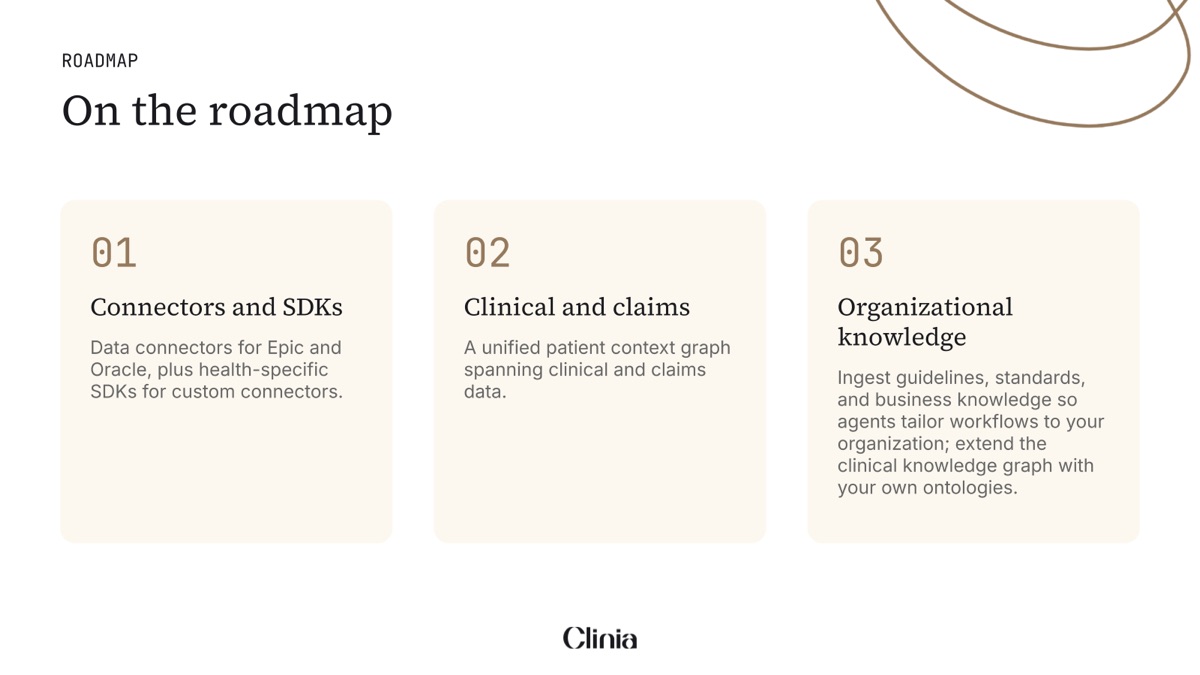
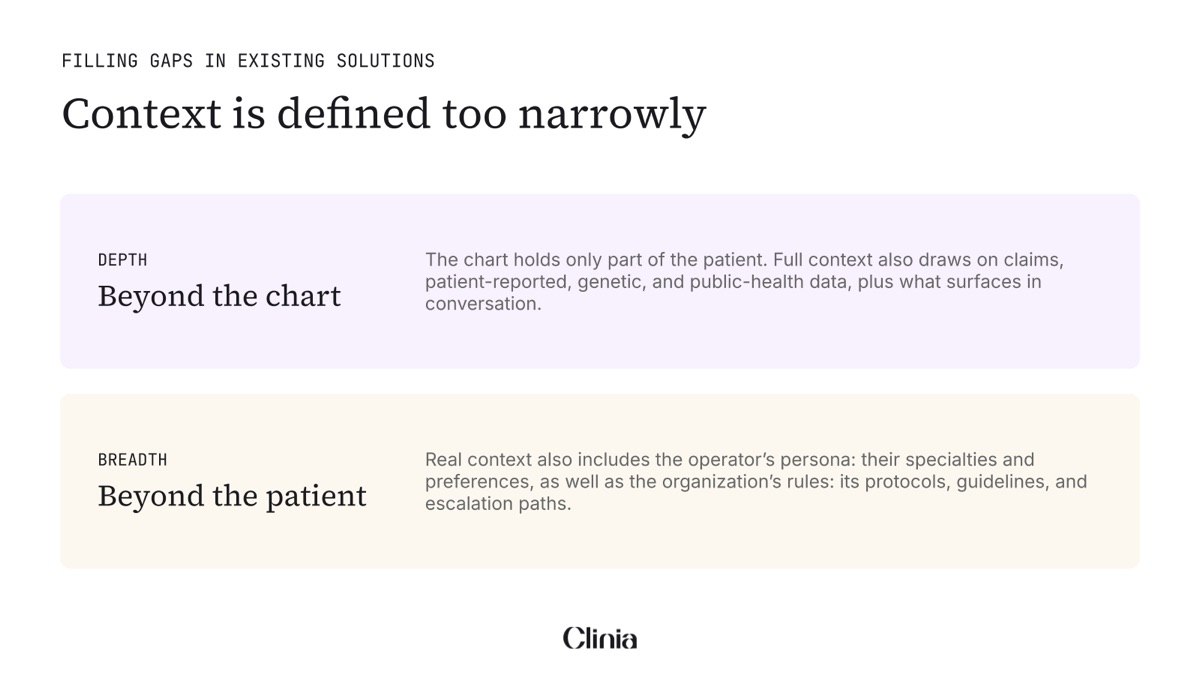

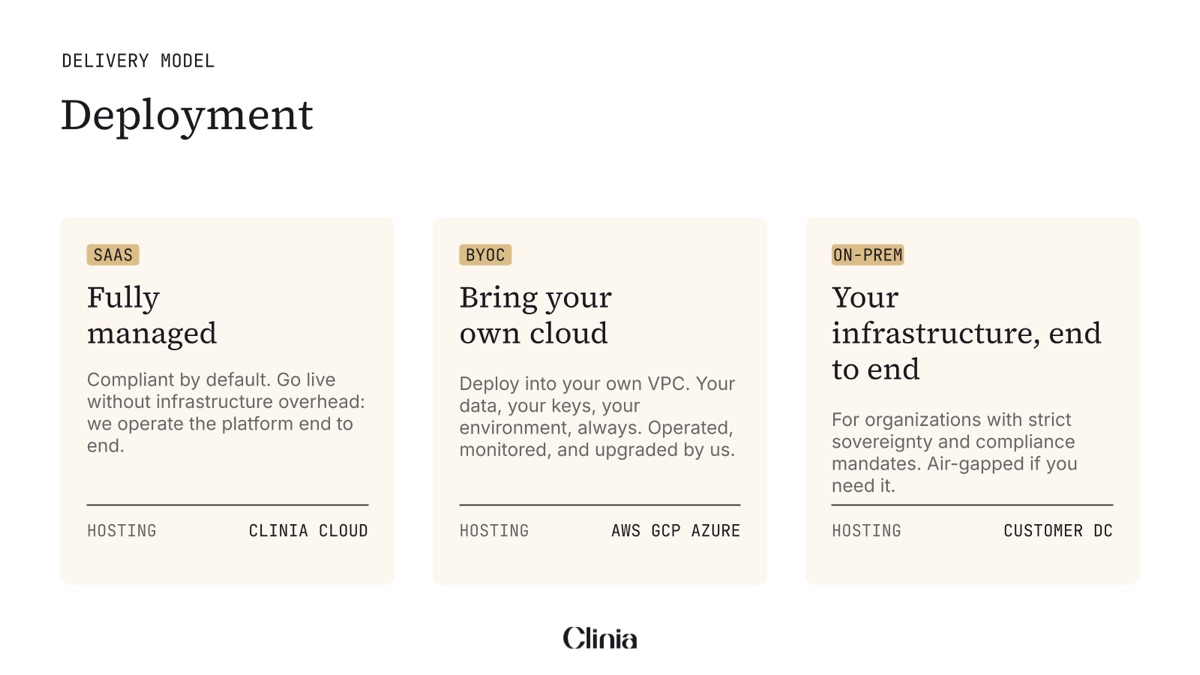
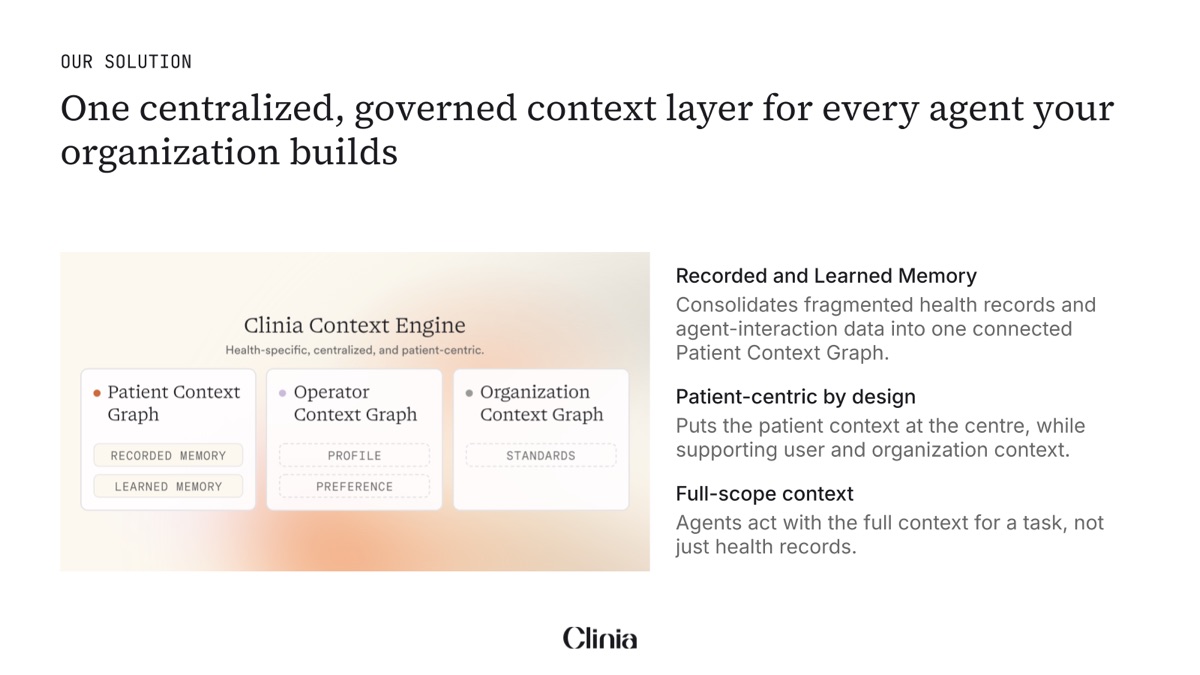
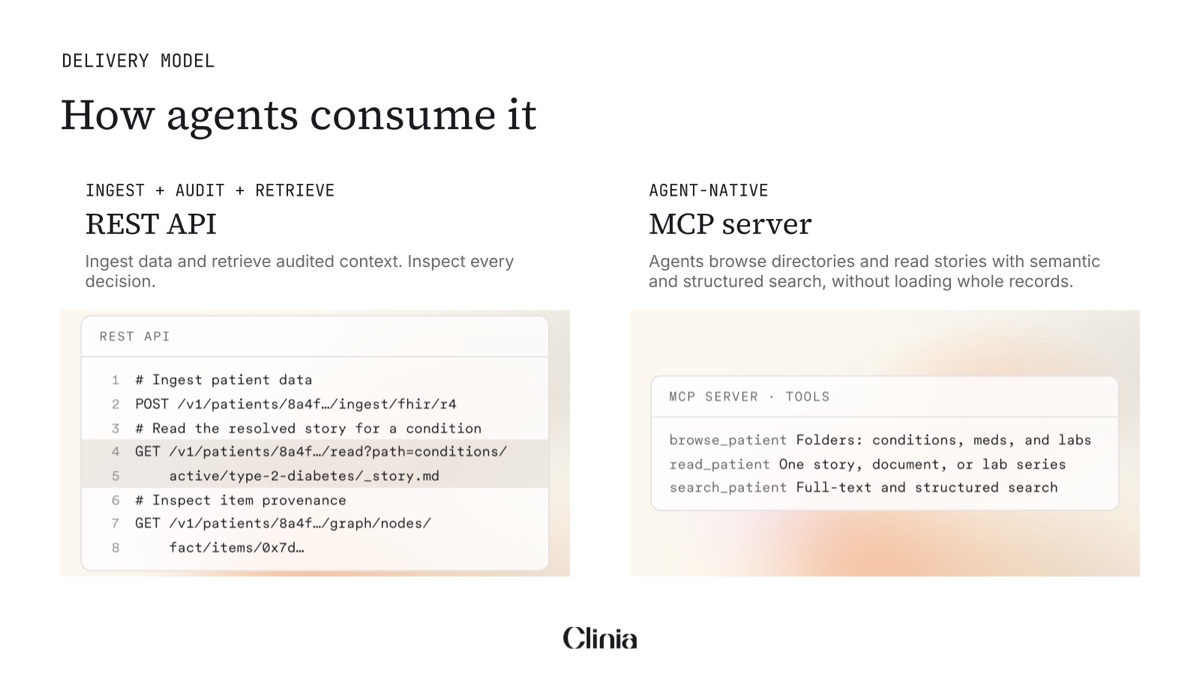
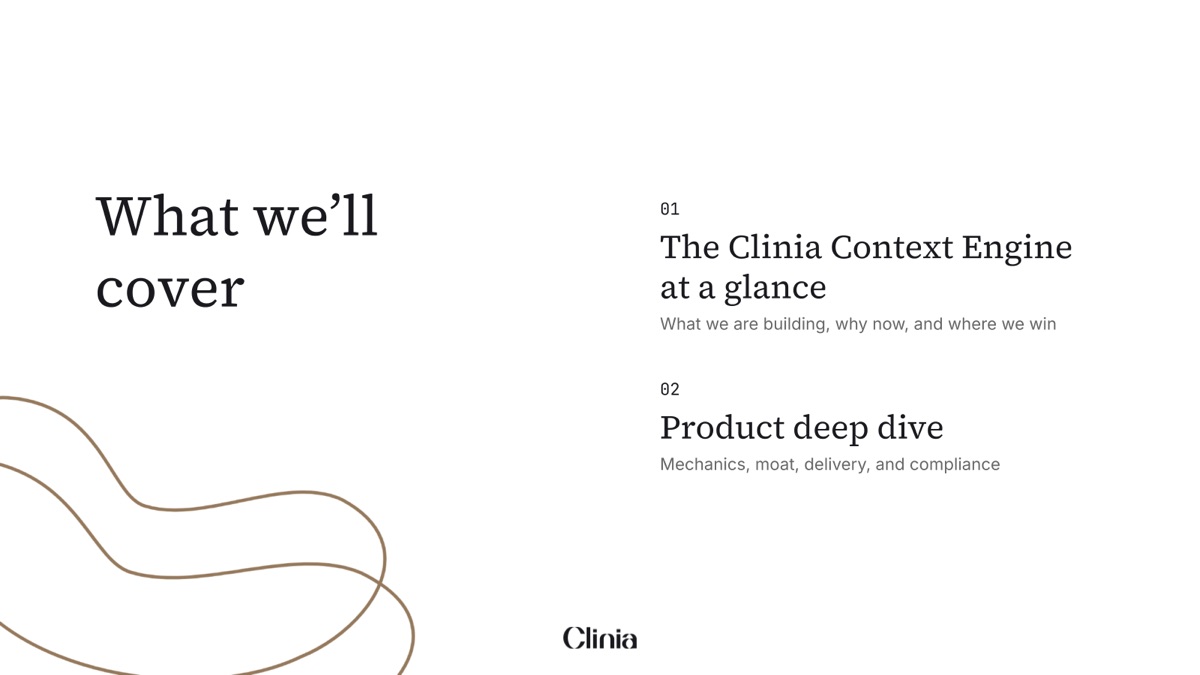
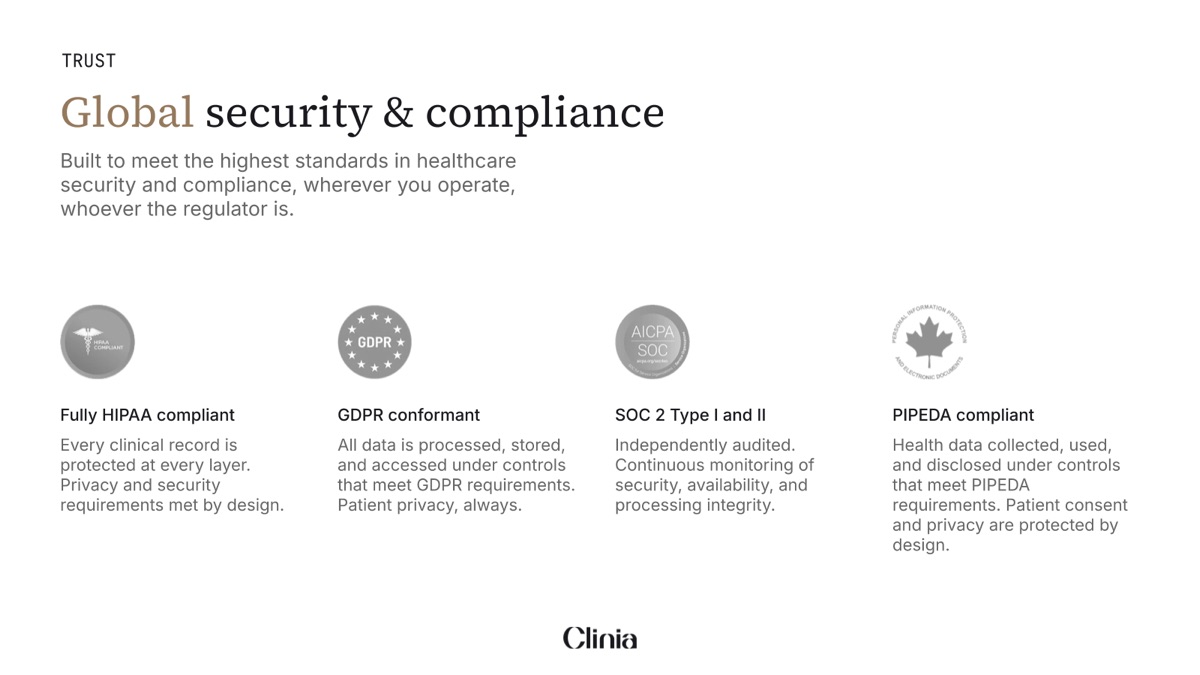
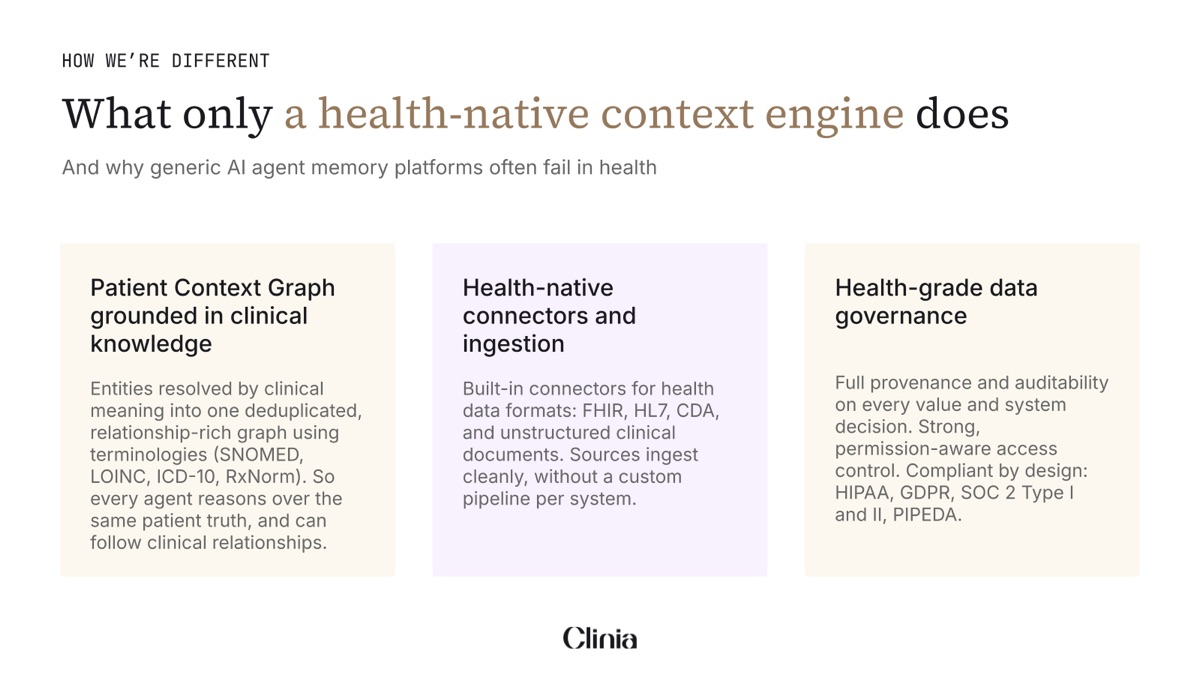
A patient's data becoming one story is shown with an animated scene approved by marketing; see Scenes. For a deck presented live it plays as an animation, once or on a loop; for a deck also sent as a PDF it is a still picture, since a PDF shows only the animation's nearly empty first frame.
Never: icons, emoji or clip art; photos outside the approved stock and portrait folders; charts in colours other than the theme's; new shapes, colours, shadows or decorations.
Do and Don't
Do
- Pick the template slide that matches the shape of your content: three points, a comparison, one number.
- Delete unused cards rather than leaving example text.
- Use the approved security and compliance badges with their titles and lines, word for word, as on Security & compliance.
Don't
- Show a placeholder slide. Proof that isn't approved yet stays out of the deck until it is.
- Change the template's fonts or colours, or add bold or italics.
- Add shapes, colours or icons that the template doesn't have.
- Paste screenshots of other decks: their colours and fonts come with them.
- Claim a certification that isn't on trust.clinia.com. See Security & compliance.