
Documents
Clinia documents in Google Docs: the template, which pages a document has, the rules that make it good, and how to make one with the clinia-docs skill.
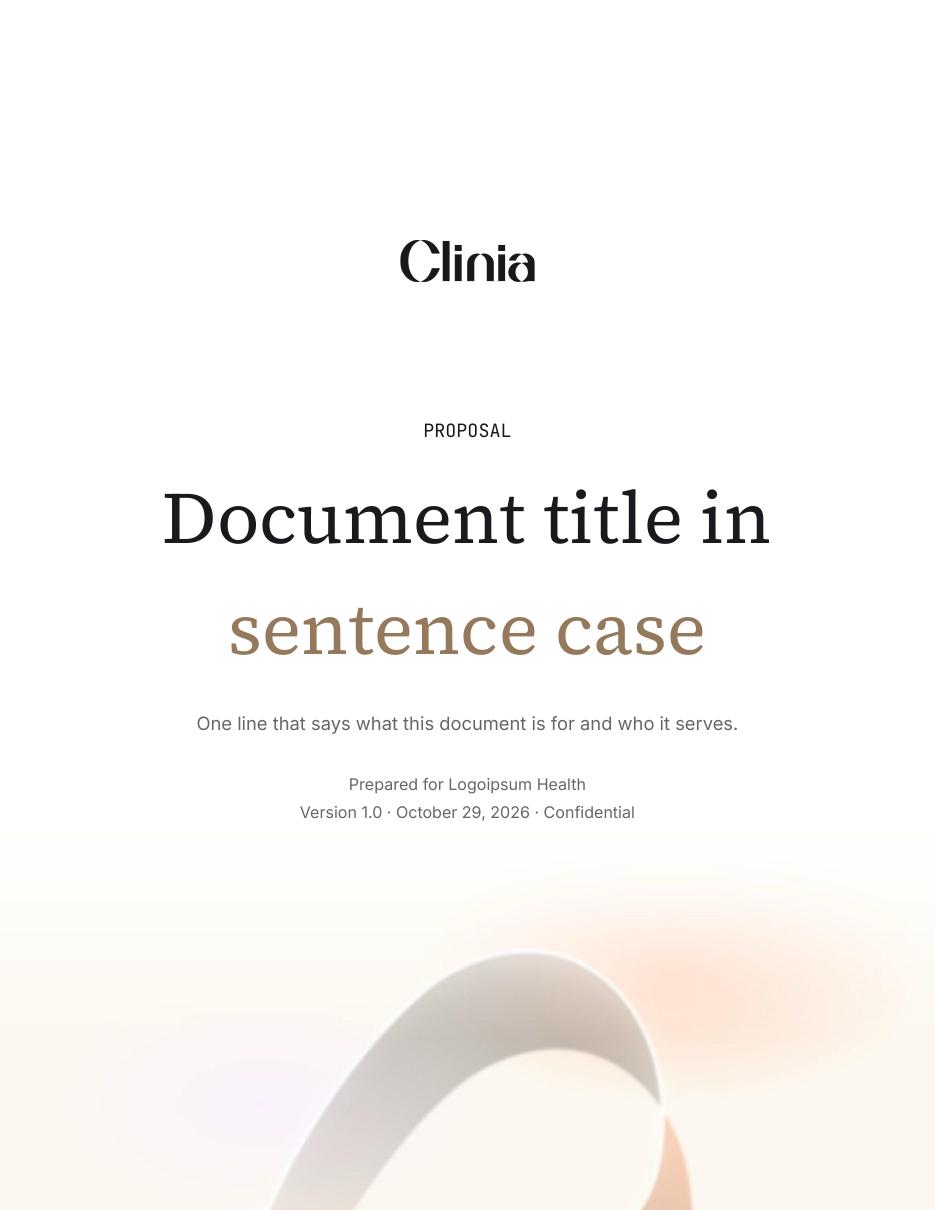
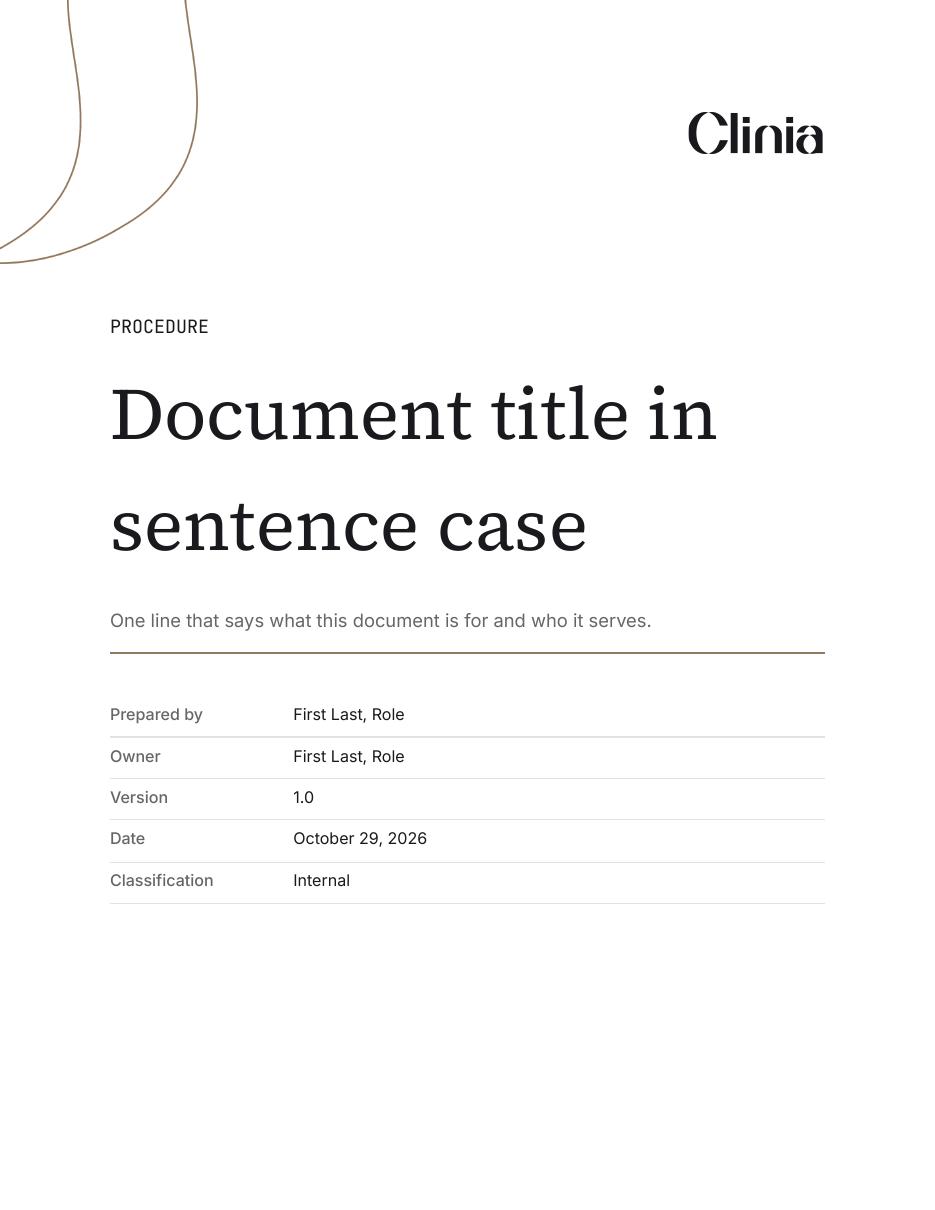
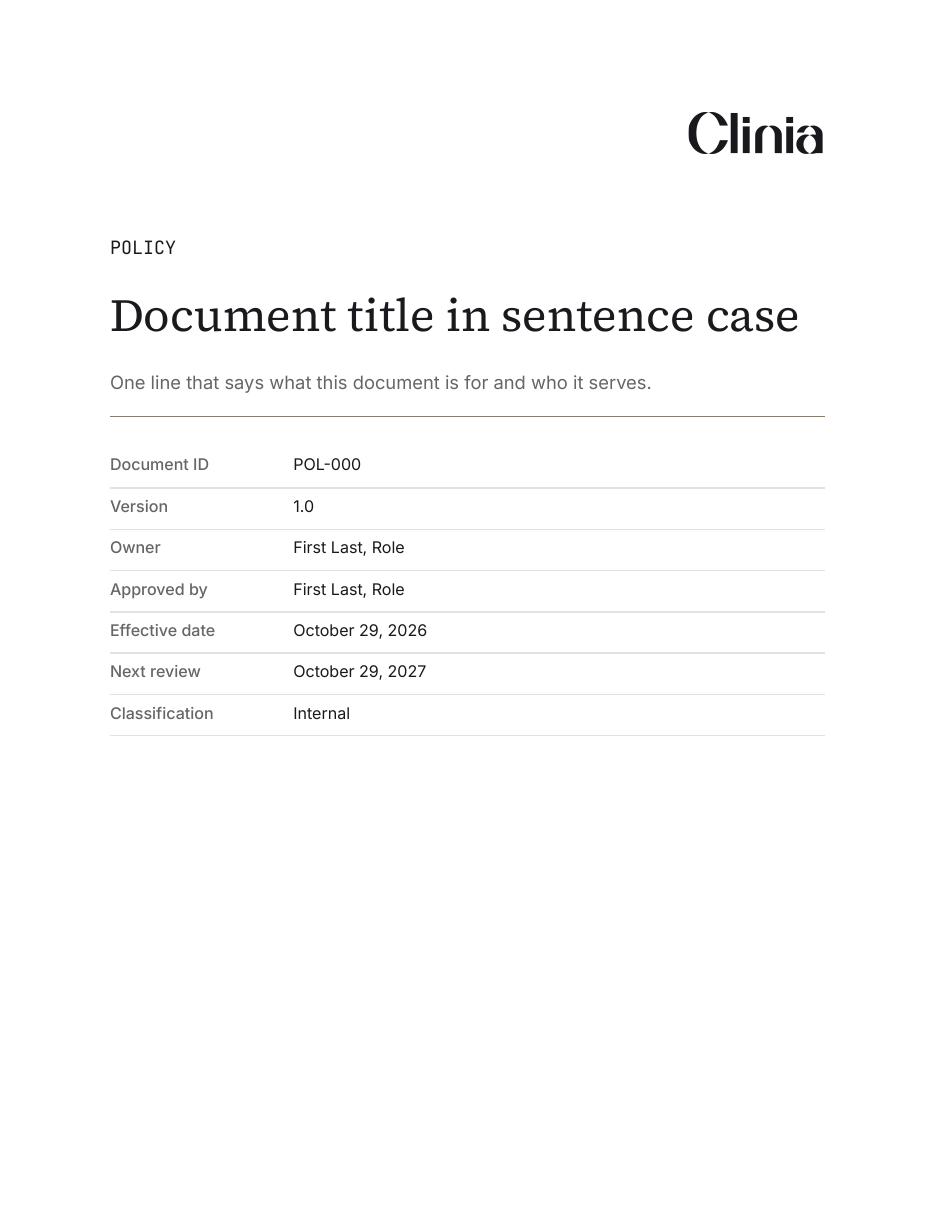
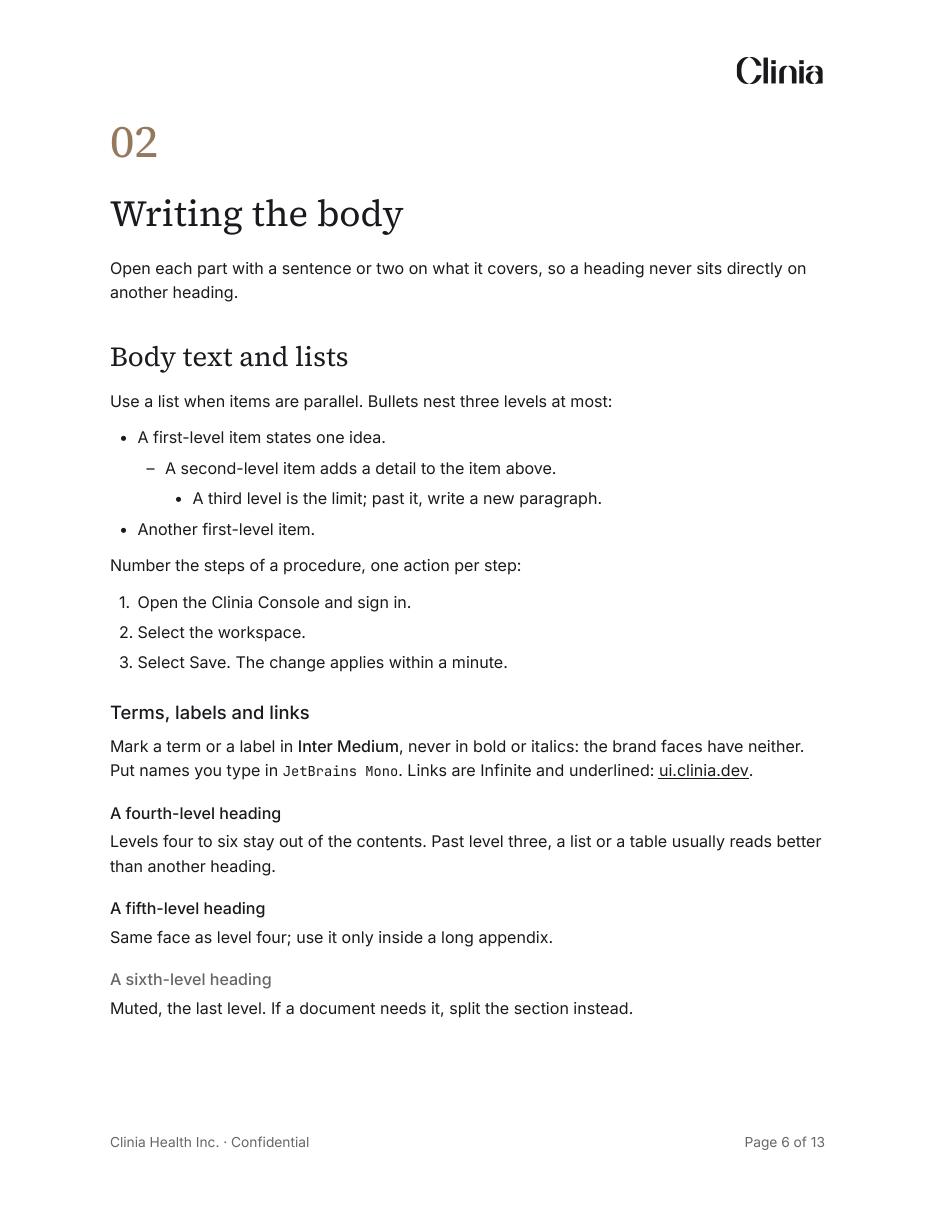
Every Clinia document starts from one Google Doc: the Clinia document template. Guides, procedures, policies, architecture documents, reports and proposals share its covers, type, tables and callouts, so they read as one company whichever team wrote them. Claude can write a new document on it, or move an older one onto it without changing what it says.
The template
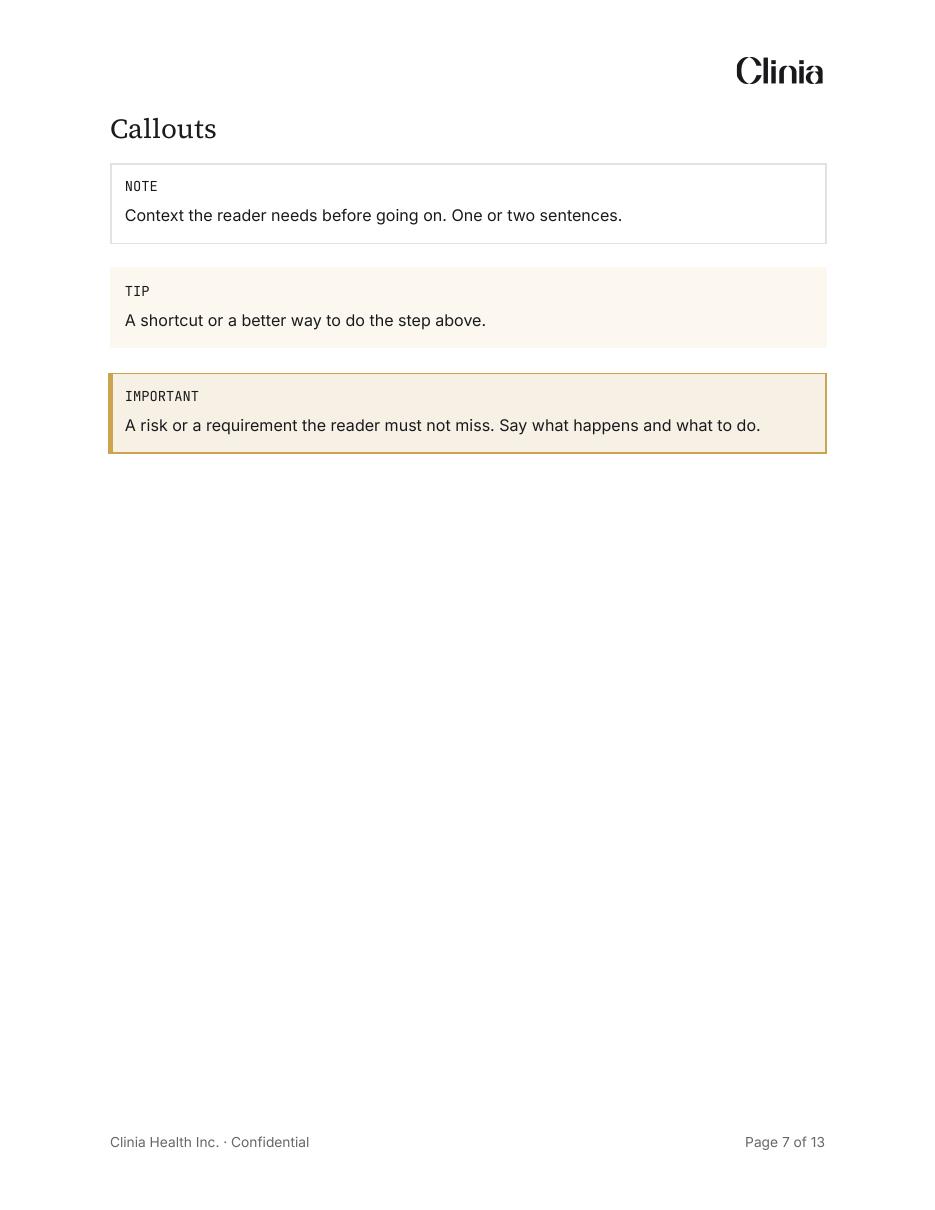
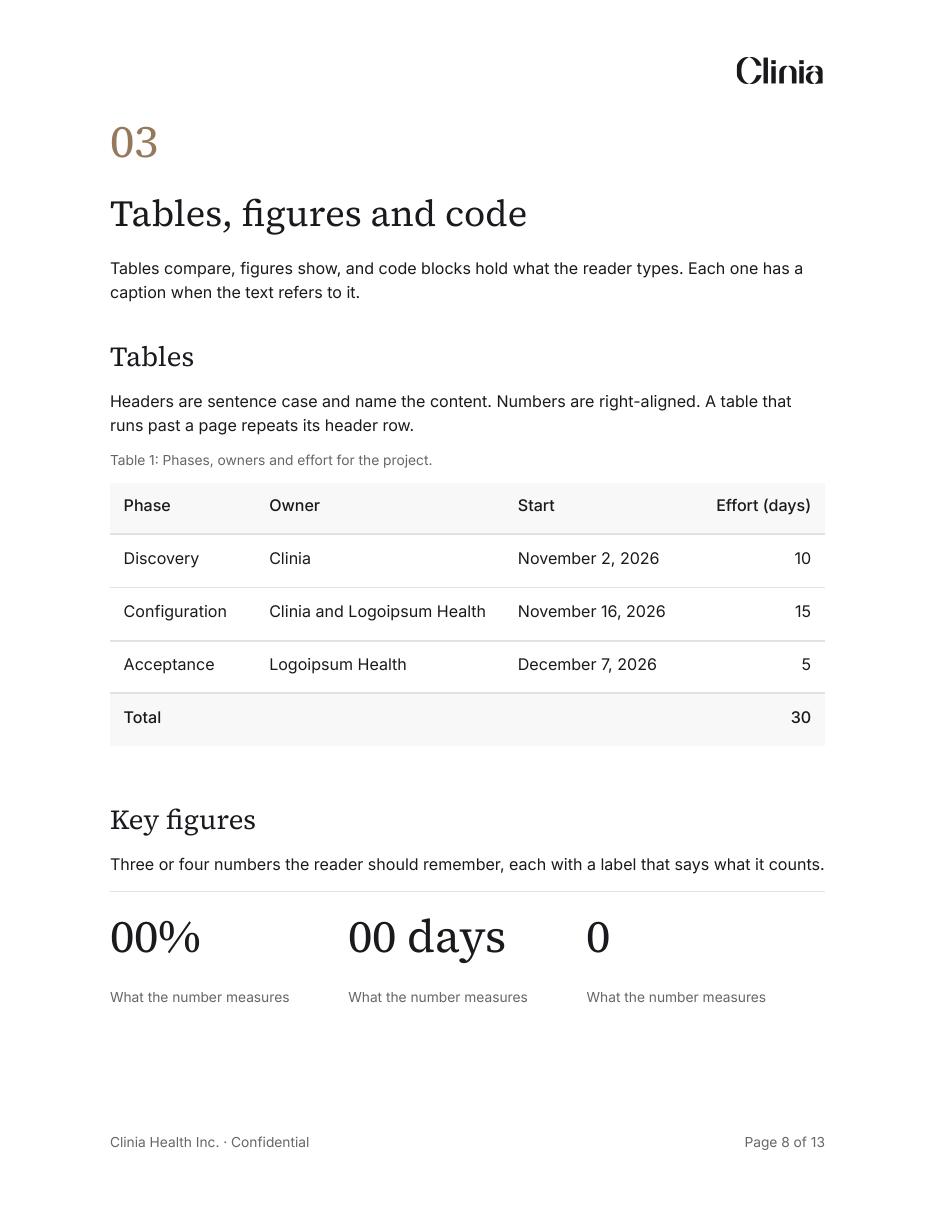
The template is in the Documents templates folder in Drive. It's locked: every document is a copy. It shows each element once, so you can see everything a document can use.
What a document has
A few pages are in every document. The rest appear only when your content needs them: moving an older document onto the template never adds a page or a section it didn't have.
| Page | When |
|---|---|
| One opener | An external cover for anything a client, partner or the public reads; a title block for policies; an internal cover for everything else. |
| Contents | When the document already had one, or has five parts or more. |
| Parts | Always: each top-level section becomes a numbered part. |
| Definitions, approval, version history | When the document has them. A new policy or procedure always gets a version history. |
| Appendices | When the document has them. |
Choose a classification
Every document carries one, on its opener and in its footer. It also sets who you share it with.
| Classification | Use it for | Share with |
|---|---|---|
| Public | Anything published or sent without restriction, once marketing approves it | Anyone with the link |
| Internal | Everyday work inside Clinia | Clinia |
| Confidential | Client documents, contracts, pricing, security, personal information | Named people only |
A document you share with a client is Confidential unless marketing has approved it as Public.
What makes a good one
- The first paragraph tells the reader what to know, do or decide.
- Each heading says what its section contains: "Escalate an outage within 15 minutes", not "Escalation".
- A procedure is a numbered list, one action per step.
- A table compares three things or more, in five columns or fewer.
- A table or figure that the text points to has a numbered caption, and every picture has alt text.
- Canadian English and sentence case. No bold, italics, emoji or em dashes: the only emphasis is a word of a title in Trust (#95795C).
- Point to another section by its heading, never by a page number.
How to get one made
Open the template and make a copy of it (File, Make a copy), then work in your copy. Keep the opener and the pages your document needs, replace the example text with yours, and delete the rest. Never edit the template itself.
Claude can also make the document for you. The clinia-docs skill works from a brief and notes, or from an older document:
- Brief: you say what kind of document it is, who reads it, the language and the classification, and share your notes or the old document.
- Outline: Claude lists each part and what it becomes, plus anything missing. Nothing is built until you approve it.
- Build: Claude copies the template and fills it in.
- Check: Claude checks the brand and the rules, then looks at every page.
- Hand-back: you get the link, the gaps for you to fill, and two things to do by hand: click the contents and choose Update, and insert each figure into its slot.
To add the skill, download it and upload it under Skills in Claude Desktop's settings. In Claude Code, open the clinia/ui repository: the skill is already there. Either way, connect Google Drive and Google Docs first.
Anything a client, partner or the public reads goes through marketing before you share it: post it in #content-review with what to check. Internal documents don't.
Do and Don't
Do
- Start every document from a copy of the template.
- Give Claude an older document as it is: it keeps the content and tells you what's missing.
- Fill the gaps Claude lists yourself, then share.
Don't
- Edit the template, or rebuild its covers, tables or callouts by hand.
- Add colour, bold, emoji or decoration: the template has everything a document needs.
- Share an external document before marketing approves it.